
Context7 brings up-to-date library documentation directly into Cursor. Instead of getting outdated code examples from training data, you get current documentation from source repositories.
Installation#
Run the setup command to configure Context7 for Cursor:
Authenticates via OAuth, generates an API key, and installs the appropriate skill. You can choose between CLI or MCP mode.
For manual MCP installation or other configuration options, see All MCP Clients.
Setting Up Rules#
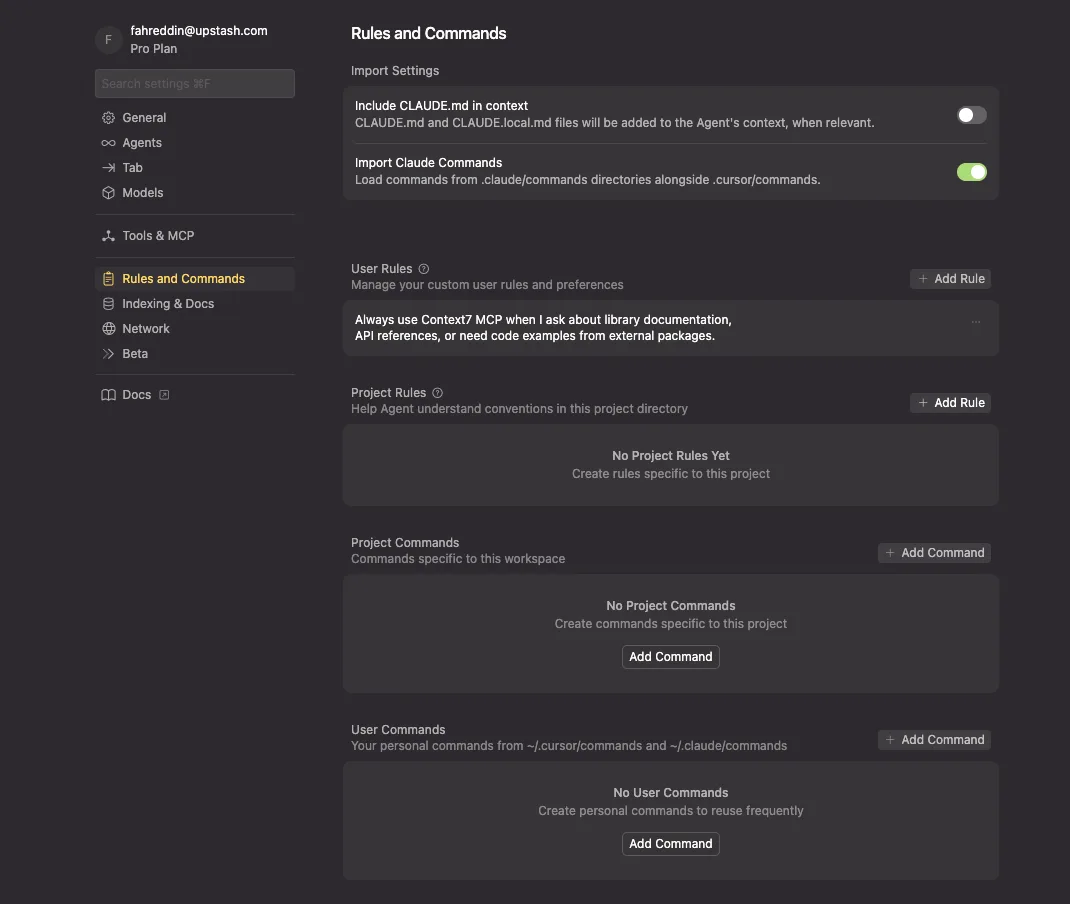
With ctx7 setup, a skill is installed that triggers Context7 automatically. If you prefer to use a rule instead, add one in Cursor.
Using Context7#
Add "use context7" to your prompts to fetch current documentation:
If you know the library ID, use it directly to skip resolution:
Tips#
Project vs Global Config
Use global config (~/.cursor/mcp.json) when:
- You want Context7 available in all projects
- You're using a personal API key
Use project config (.cursor/mcp.json) when:
- The project has specific Context7 requirements
- You want to share the setup with teammates
- Different projects need different API keys
Combining with Cursor Composer
Context7 works well with Cursor's Composer feature. When you're building something that involves external libraries:
- Start with a prompt that mentions the libraries you need
- Context7 fetches the relevant docs
- Composer uses those docs to generate accurate code
This is especially useful for newer library versions that might not be in Cursor's training data.
Getting Better Results
- Be specific about what you're trying to do, not just which library
- Mention versions when they matter
- If the first result isn't right, ask for a different part of the docs